Customers & requests
Add a customer and their service address
Create a contact record and add the properties where your team will work.
For Owner, Admin, Manager · FieldSpoke Support
Updated
Understand customers and properties
A customer record holds the person's contact information. A property holds a service location. When you create a job, you select the customer first and then one of that customer's active properties. This keeps a customer's contact details separate from the place your technician needs to visit.
Before adding a record, look for the customer in Customers. Reuse the existing customer when you are adding another visit or another service location for the same contact.
Create the contact record
Open the new customer form
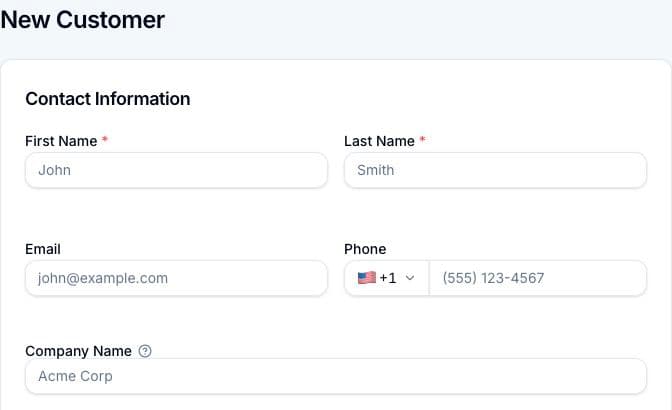
In Customers, choose Add Customer. Enter the required First Name and Last Name. Add Email and Phone so you have the contact information needed for customer communications.
Add useful context
Enter Company Name when appropriate, select a Lead Source if known, and add Notes that help the team understand the customer. Company Name is optional and is used for invoicing and display.
Save and check the result
Choose Create Customer and open the customer's page. Review Contact Info and Properties before creating a job.
Check the property before scheduling
Use the Properties section on the customer page to add the service location, or complete the property form while creating the customer. On a job form, the Property list becomes available after you select a customer. Check the street and city in the selected property rather than relying only on a familiar customer name.
If FieldSpoke says the customer was created but the property could not be added, keep the customer record. Open its page and add the missing property there; creating the customer again would give you an unnecessary second record.
Keep going
Still need a hand?
Email support@fieldspoke.com and tell us where you got stuck.